Back to Blog
How to Generate Click-Worthy Thumbnails with TubeLog AI
AIThumbnailsDesignCTRTutorial

How to Generate Click-Worthy Thumbnails with TubeLog AI

May 15, 2025TubeLog Team5 min read

How to Generate Click-Worthy Thumbnails with TubeLog AI

Great thumbnails are the difference between a video that gets clicked and one that gets scrolled past. TubeLog's AI Thumbnail Generation combines image generation with eye-tracking prediction to help you create thumbnails that perform β€” before you publish.

#The Two-Step Process

TubeLog's thumbnail workflow has two distinct phases:

  1. Generate β€” Create thumbnail concepts with AI using your video's context
  2. Score β€” Run each concept through DeepGaze + CLIP to predict CTR performance

Most creators skip straight to designing without testing. TubeLog closes that gap.

#Step 1: Generating Thumbnails

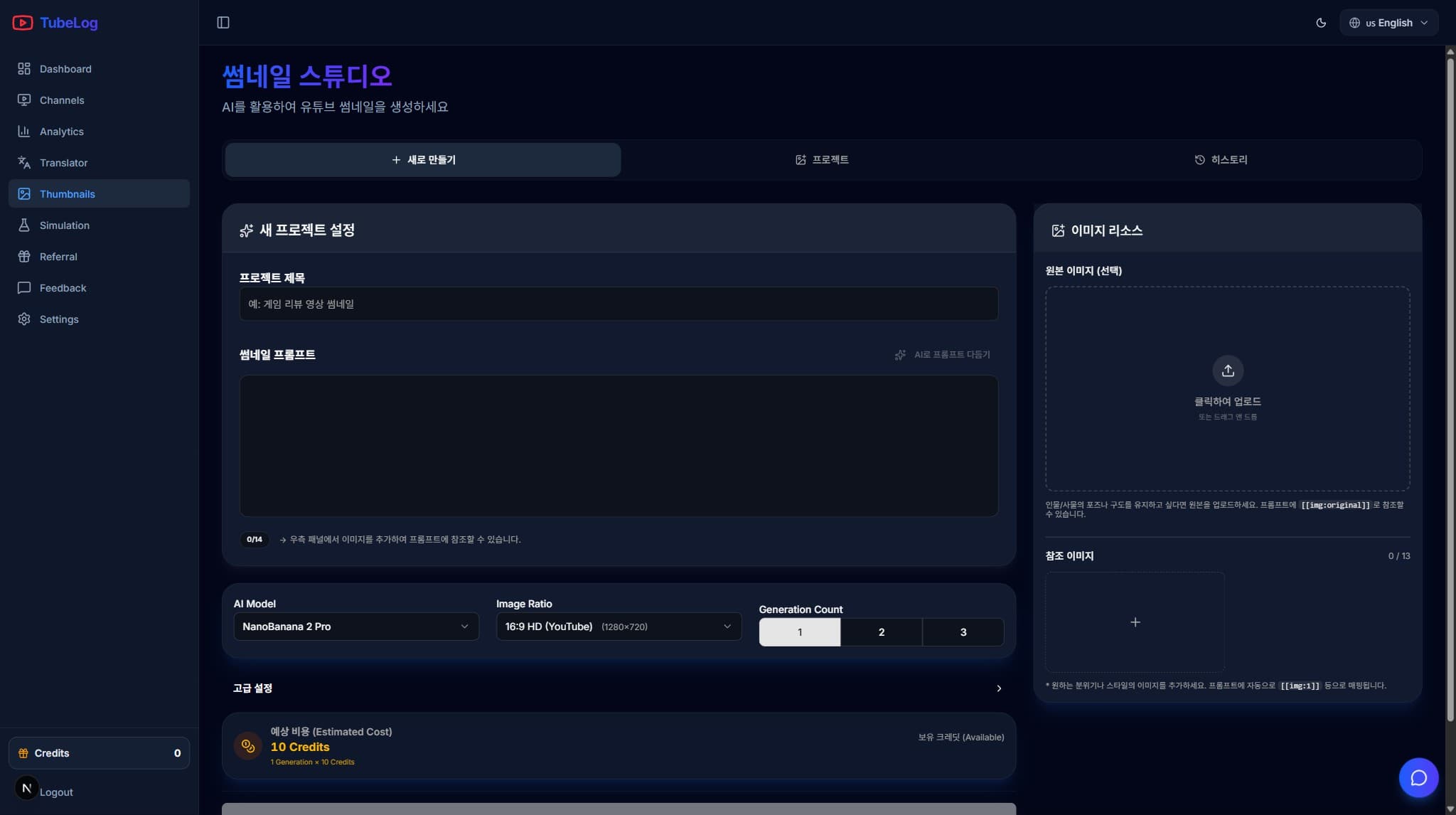
Navigate to AI Tools β†’ Thumbnail Generator.

TubeLog AI thumbnail generator showing prompt input, style controls, and generated thumbnail grid
Expand
TubeLog AI thumbnail generator showing prompt input, style controls, and generated thumbnail grid

#Writing Effective Prompts

The AI generates better thumbnails when you give it specific context about your video:

Weak prompt:

"YouTube thumbnail for my cooking video"

Strong prompt:

"YouTube thumbnail: close-up of a golden crispy fried chicken piece being pulled apart, steam rising, dark moody background, bright red text overlay area at top, photorealistic style, high contrast"

Include in your prompt:

  • Main visual element β€” what's the hero image? (product, face, food, etc.)
  • Mood/atmosphere β€” bright and energetic, dark and dramatic, clean and minimal
  • Text placement hint β€” "text area at top", "bold title space on left side"
  • Style reference β€” photorealistic, illustration, cinematic, flat design

#Style Presets

Use the style presets to quickly set visual direction:

| Preset | Best For | |--------|----------| | Cinematic | Tech reviews, documentaries, travel | | Bold & Bright | Gaming, challenges, lifestyle | | Minimal Clean | Finance, education, tutorials | | Dark Dramatic | True crime, horror, intense topics | | Warm & Personal | Vlogs, cooking, family content |

#Batch Generation

Generate 4 variations at once by clicking Generate x4. Each variation uses the same base prompt but applies different composition and color treatments. This gives you options to compare without writing multiple prompts.

#Step 2: Scoring Your Thumbnails

After generating, select any thumbnail and click Analyze with TubeLog Score.

Thumbnail score breakdown showing visual attention heatmap, element scores, and overall TubeLog Score of 78
Expand
Thumbnail score breakdown showing visual attention heatmap, element scores, and overall TubeLog Score of 78

#Understanding the Score Components

The TubeLog Score (0–100) combines:

Visual Attention (40%) β€” DeepGaze AI predicts where viewers' eyes go first. High scorers have a clear "hero" element in the top-attention zone.

Clarity (25%) β€” How quickly can a viewer understand what the thumbnail is about at a glance? Cluttered thumbnails score low.

Contrast (20%) β€” Strong contrast between subject and background improves visibility in the YouTube feed, especially on mobile.

Emotion/Engagement (15%) β€” Thumbnails with visible human faces, especially with strong emotions, consistently outperform text-only or object-only thumbnails.

#Reading the Heatmap

The heatmap overlay shows predicted viewer attention zones:

  • Red/Orange = High attention
  • Yellow = Medium attention
  • Blue/Green = Low attention

Your main subject should be in the red zone. If it's not, regenerate with a different composition or crop.

#Score Benchmarks

| Score Range | Performance Prediction | |-------------|----------------------| | 85–100 | Exceptional β€” top 5% of thumbnails | | 70–84 | Strong β€” above average CTR expected | | 55–69 | Average β€” room for improvement | | Below 55 | Needs work β€” redesign recommended |

#Step 3: Comparing Finalists

Once you have 2–4 strong candidates (all scoring 70+), use the Compare view to place them side by side.

The compare view shows:

  • Score breakdown for each thumbnail
  • Side-by-side heatmap comparison
  • Predicted performance ranking

Pick the highest-scoring thumbnail with the composition that best represents your video's content β€” because a high-scoring thumbnail that misleads viewers will hurt your audience retention.

#Step 4: Adding Text Overlays

TubeLog's built-in text editor lets you add title text directly in the app:

  1. Select your thumbnail
  2. Click Add Text
  3. Type your title (aim for 3–5 words maximum)
  4. Choose font, size, color, and shadow
  5. Re-run the score β€” text overlays affect the final score

Pro tip: Re-score after adding text. Text in the wrong location can significantly lower your attention score by covering your subject's face or key visual element.

#Downloading and Using Your Thumbnail

When satisfied, click Download to get a 1280Γ—720 PNG file β€” YouTube's recommended thumbnail resolution.

To upload to YouTube:

  1. Open YouTube Studio β†’ select your video
  2. Click Thumbnail β†’ Upload thumbnail
  3. Select the downloaded PNG
  4. Click Save

#Common Mistakes to Avoid

Using too much text β€” YouTube thumbnails are seen at ~90Γ—50 pixels in feeds. If your text has more than 5 words, it won't be readable.

Choosing style over clarity β€” A beautiful thumbnail that doesn't clearly show what the video is about will get skipped.

Ignoring face emotion β€” If you're in the thumbnail, your expression matters. A surprised, excited, or intense expression dramatically outperforms a neutral face.

Not re-scoring after edits β€” Always run the final thumbnail through the scorer before uploading. A small crop or color change can move the score by 5–10 points.